
DP Venue Lister Guide
Get your venue listed on EatDrinkPlay - register, verify, subscribe, and start connecting with Sydney and Melbourne's food and entertainment enthusiasts.
Venue Lister Overview
A DP Venue Lister is a venue owner, manager, or operator who creates and manages a business listing on EatDrinkPlay. As a Venue Lister you can:
- Create a comprehensive venue profile on the EatDrinkPlay directory
- Upload photos, set opening hours, and add booking links
- Create promotional offers for EDP members
- Manage your listing details - keep information current
- Reach Sydney and Melbourne's food-savvy audience
- Access a dedicated listing management dashboard
Activation Workflow
Registration
Location: Main navigation → Join / Members page → Register tab
-
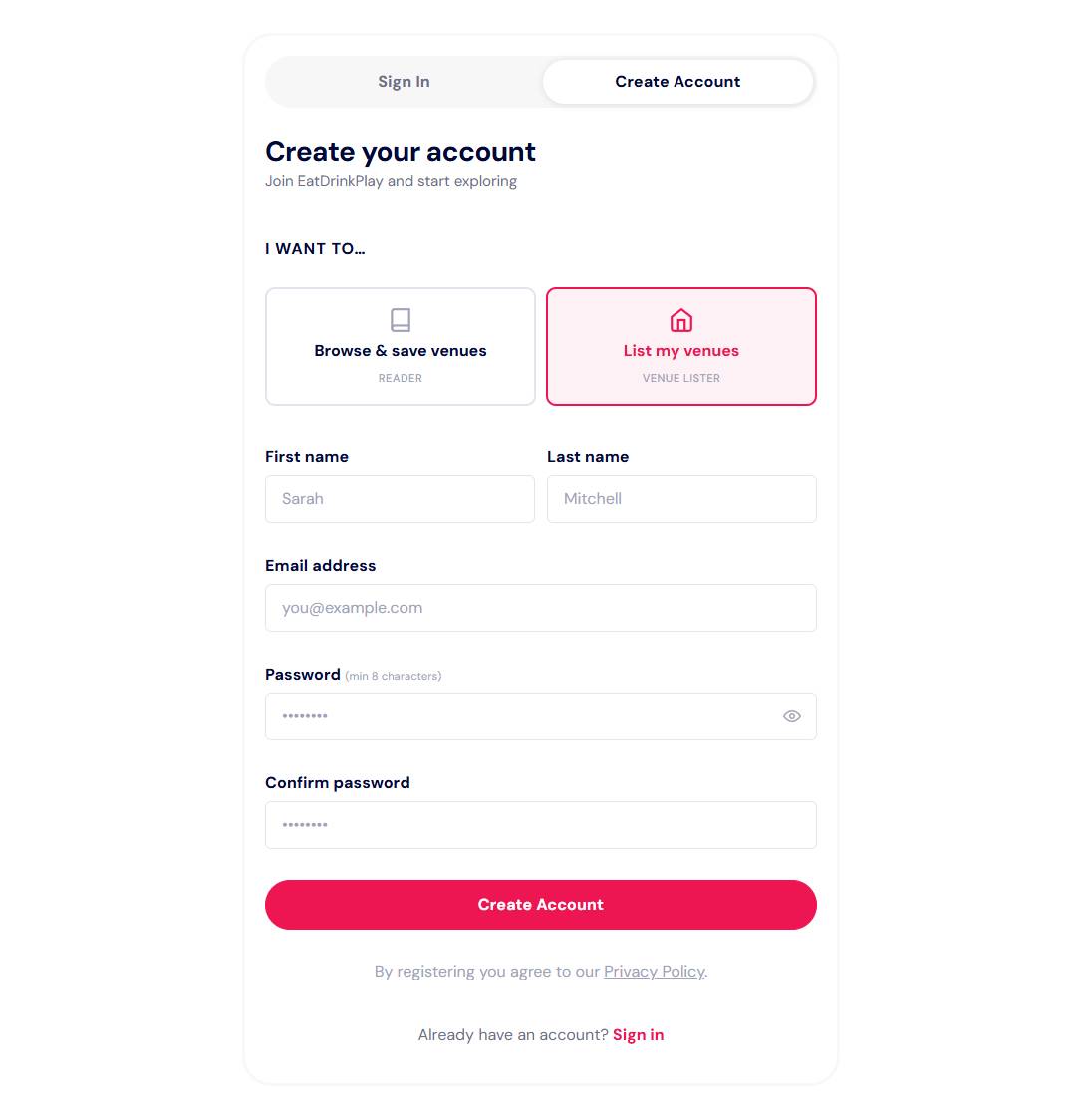
Go to the Members Page
Navigate to the Members/Join page and click the Register or Sign Up tab.
-
Select "DP Venue Lister"
Choose DP Venue Lister as your account type. This unlocks the venue listing workflow.
-
Enter Your Details
Fill in your full name, email address (use your business email), and a secure password.
-
Submit Registration
Click Create Account. Your account is created with status email_pending. You'll be prompted to verify your email.
Email Verification
-
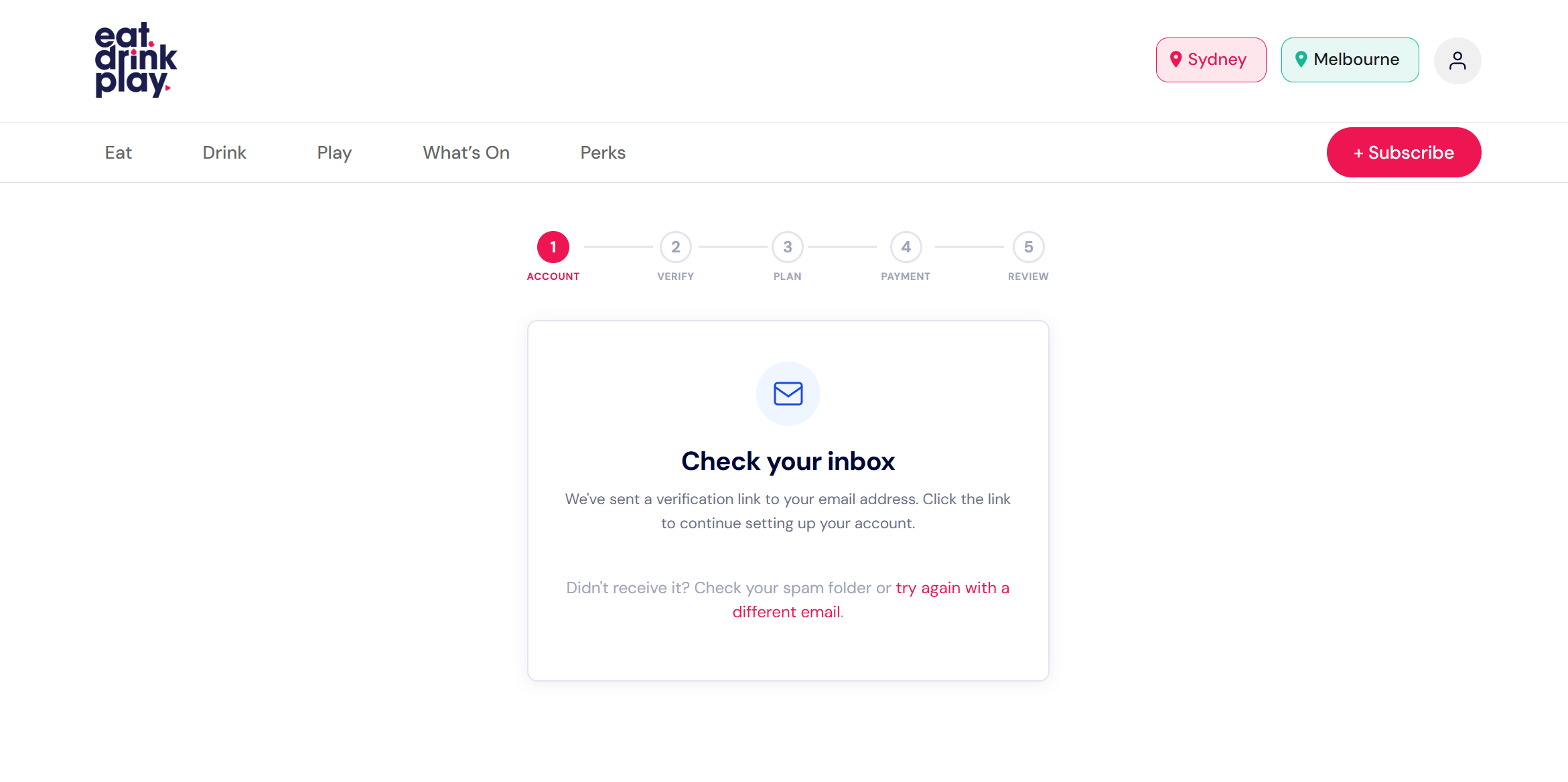
Check Your Inbox
After registration, a verification email is sent to your registered email address. Check your inbox (and spam/junk folder).
-
Click the Verification Link
Open the email from EatDrinkPlay and click the Verify Email button or link.
Payment via Stripe
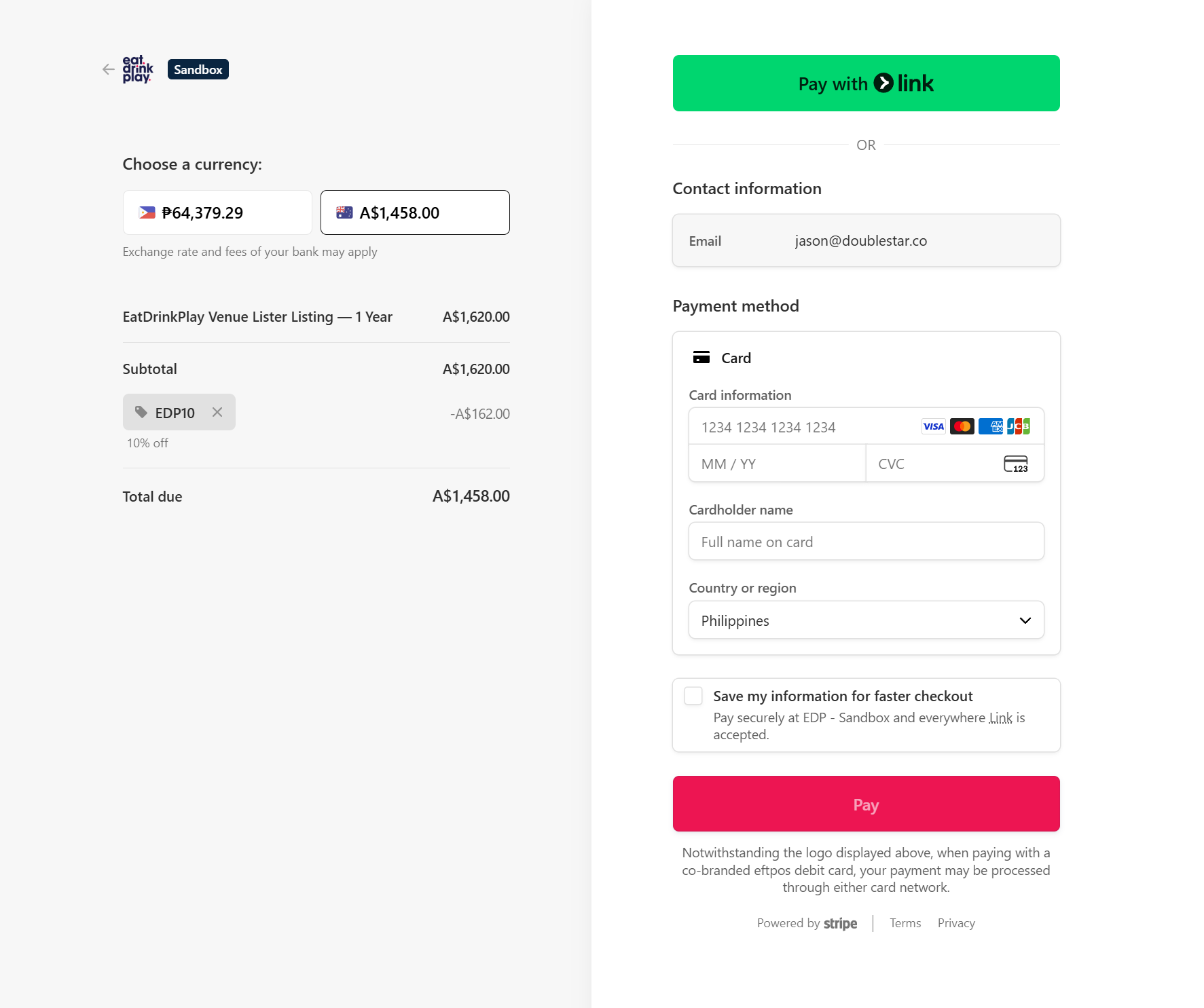
Venue Lister subscriptions are paid securely via Stripe. EatDrinkPlay does not store your card details.
-
Enter Card Details
On the payment page, enter your credit or debit card number, expiry date, and CVV/security code.
-
Confirm Payment
Click Pay Now. Stripe processes the payment securely. You may be redirected to complete 3D Secure authentication with your bank.
-
Payment Confirmation
On successful payment, you are redirected to the Payment Success page and your account status updates to review_pending.
Admin Approval
After payment, your application enters a review queue. The EatDrinkPlay team will review your application within 1–3 business days.
What Happens During Review
- The EatDrinkPlay team reviews your business details
- Verifies the venue is appropriate for the directory
- Confirms the subscription payment was received
- Activates your account upon approval
Approval Notification
You will receive an email notification when your account is approved. Your account status changes to active and you can immediately start creating your venue listing.
Lister Dashboard
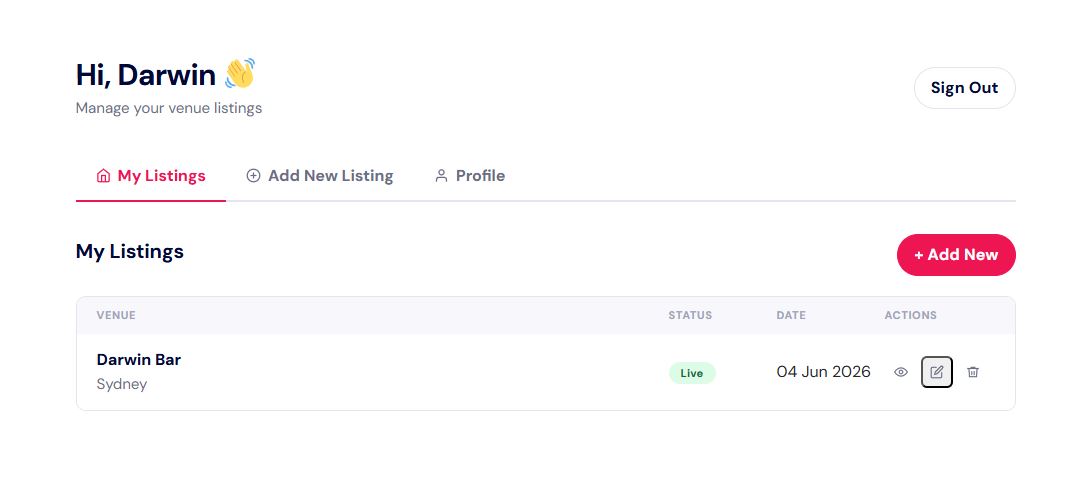
Once approved, your dashboard at /dashboard/ provides
access to all listing management features.
Dashboard Tabs
| Tab | Contents |
|---|---|
| My Listings | All your venue listings with status, edit, view and delete options |
| Add Listing | Create a new venue listing |
| Profile | Update account details |
Create a Venue Listing
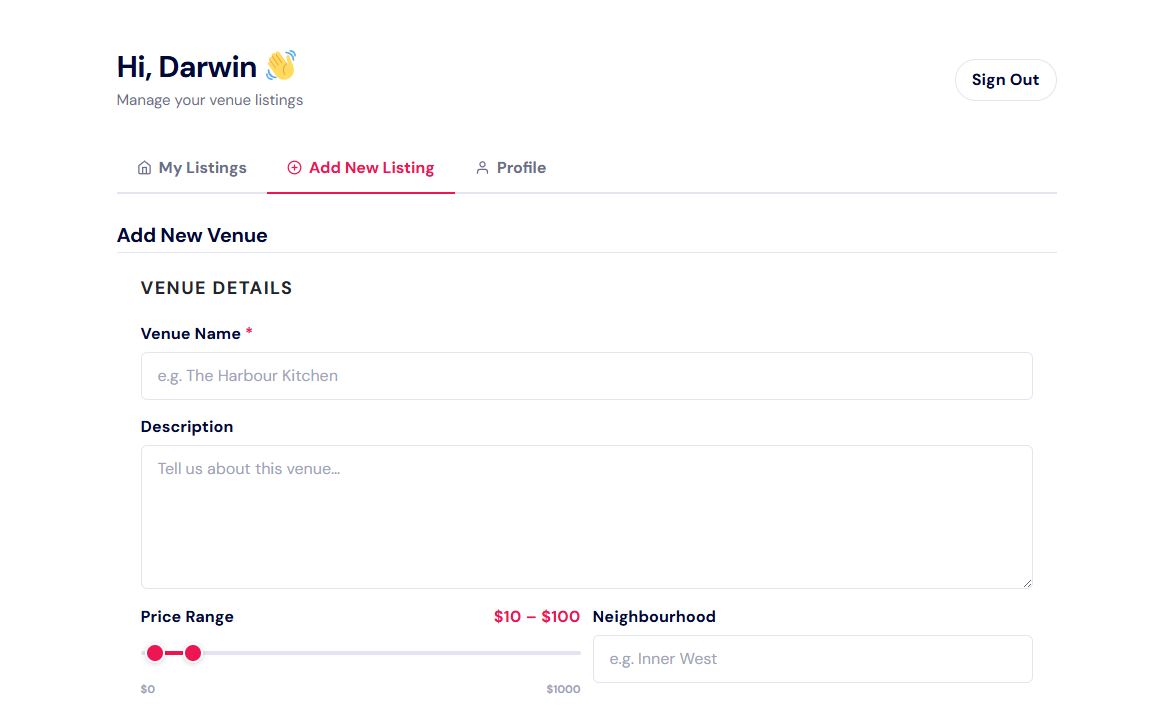
Once your account is active, you can create your venue's listing from the dashboard.
-
Go to Add Listing
In your dashboard, click Add Listing or the + New Venue button.
-
Enter Venue Name
Type your venue's full official name in the Venue Name field at the top of the form.
-
Write a Description
Write a compelling description of your venue - what makes it special, the atmosphere, signature offerings. This is what EDP readers will see on your venue page.
-
Fill In Location Details
Enter your full street address, suburb, city (Sydney or Melbourne), state, and postcode.
-
Add Contact & Web Details
Enter your venue's phone number, website URL, and any social media links (Instagram, Facebook).
-
Set Opening Hours
Enter your opening hours using the correct format. See Opening Hours for format guidance.
-
Upload Images
Upload your venue's photos - at least one hero/banner image is required. See Images & Gallery for guidance.
-
Submit for Review
Click Submit Listing. Your venue is created as a draft and sent to the EDP editorial team for review before going live.
Edit Your Listing
You can update your venue listing details at any time from your dashboard.
-
Go to My Listings
In your dashboard, click the My Listings tab. Your venue cards are displayed here.
-
Click Edit
Click the Edit button on the venue you want to update.
-
Make Your Changes
Update any field - name, description, hours, photos, links, etc.
-
Save
Click Save Changes. Changes may be reviewed by the editorial team before going live. Inferred
Venue Details
| Field | Description | Required |
|---|---|---|
| Venue Name | Full official name of the venue | Yes |
| Description | We recommend descriptions between 25 and 35 words for optimal SEO performance. Content that exceeds the preview limit will display a "Read More" option, allowing users to view the full description. Keep content clear, concise, and informative for the best user experience. | Yes |
| Address | Street address | Yes |
| Suburb | Suburb / area | Yes |
| City | Sydney or Melbourne | Yes |
| Postcode | Australian postcode | Yes |
| Phone | Venue contact number | Recommended |
| Website | Official website URL | Recommended |
| Price Range | $ to $$$$ price indicator | Recommended |
| Cuisine | Cuisine type (for dining venues) | Optional |
| Reservation URL | Online booking link (OpenTable, Resy, etc.) | Optional |
| Maps URL | Google Maps directions link | Optional |
Opening Hours
Opening hours are displayed on your venue page with a live open/closed status. Enter them in this specific text format:
Use a forward slash
/ to separate different day
groups. Use an en dash – between day ranges and time
ranges.Examples:
Mon–Fri 12pm–3pm, 6pm–10pm / Sat–Sun 12pm–11pmMonday–Thursday 5pm–midnight / Fri–Sat 5pm–2am / Sunday
ClosedDaily 11am–10pm
Social & Booking Links
| Field | Format |
|---|---|
Full URL: https://www.instagram.com/yourvenue
|
|
Full URL: https://www.facebook.com/yourvenue
|
|
| Reservation URL | Full URL to booking platform |
| Google Maps | Full Google Maps URL for your venue |
Images & Gallery
High-quality images are essential for an attractive venue listing. EatDrinkPlay supports two types of venue images.
Image Types
| Type | Purpose | Max Count | Recommended Size |
|---|---|---|---|
| Hero/Banner Images | Carousel displayed at the top of your venue page | 10 | 1600 × 900px minimum |
| Feature Image | Thumbnail shown on listing cards and search results | 1 | 800 × 600px minimum |
| Gallery Images | Additional photos in the venue gallery | 5 | 1200 × 800px minimum |
Uploading Images
-
Open the Image Upload Area
In the venue edit form, scroll to the Banner Images or Gallery section.
-
Upload Images
Click Add Images or drag and drop image files into the upload area. Supported formats: JPEG, PNG, WebP.
-
Arrange Order
Drag images to reorder them. The first image in the banner gallery will be the primary hero image.
-
Save
Click Save Changes to apply the new images to your listing.
Offers & Promotions
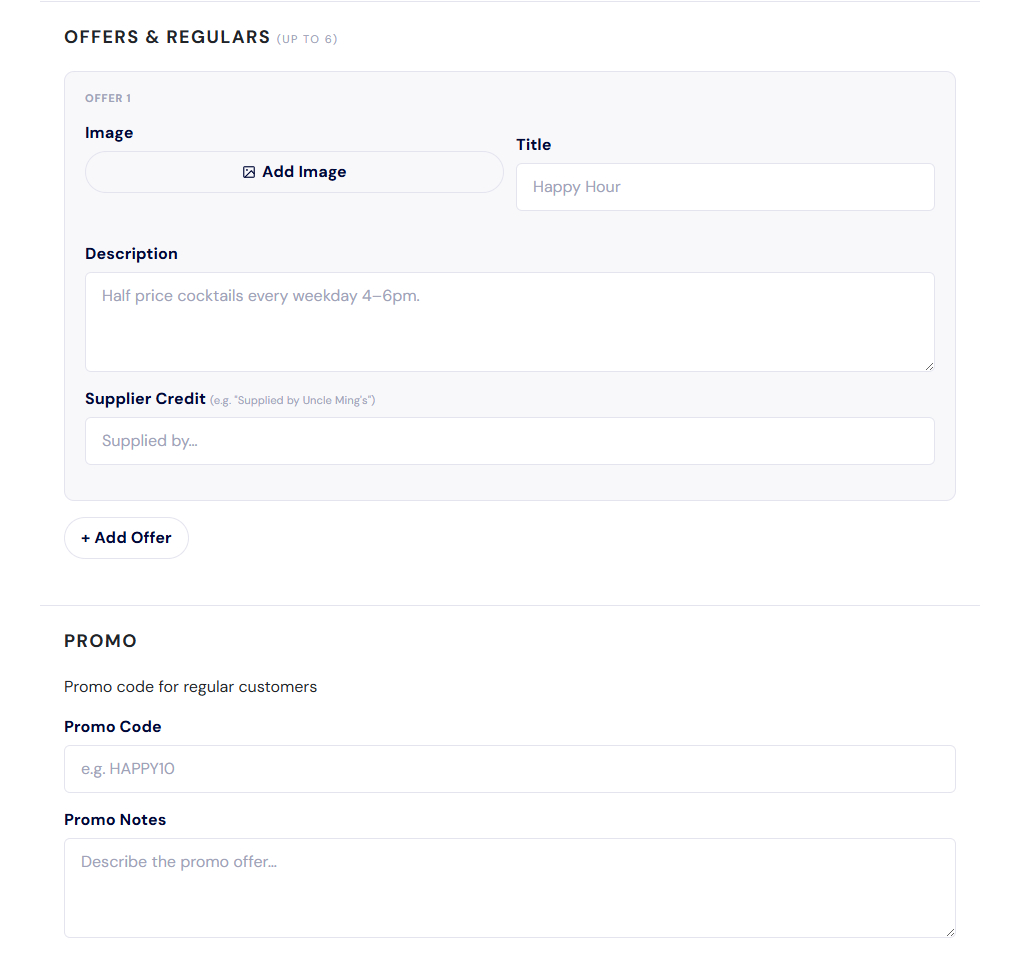
Create promotional offers on your venue listing to attract EDP members with exclusive deals.
Adding an Offer
-
Go to the Offers Section
In your venue edit form, scroll to the Offers section.
-
Click Add Offer
Click the + Add Offer button to add a new offer row.
-
Fill In Offer Details
Complete the offer fields: Image (offer thumbnail), Title (e.g., "10% off all cocktails"), Description (terms and how to redeem), and Supplier (your brand name).
-
Add Promo Code (Optional)
If the offer uses a promo code, enter it in the Promo Code field. Members will see this code on your venue page.
-
Save
Click Save Changes. Offers appear on your venue detail page for EDP members.
Managing Your Listings
Listing Statuses
| Status | Meaning | Visible to Public |
|---|---|---|
| Published | Live and visible on the EDP directory | ✅ Yes |
| Pending Review | Submitted, awaiting editorial approval | ❌ No |
| Rejected | Returned by editorial team with notes | ❌ No |
Deleting a Listing
-
Go to My Listings
In your dashboard, go to the My Listings tab.
-
Click Delete
Click the Delete button on the listing you want to remove.
-
Confirm Deletion
A confirmation prompt will appear. Confirm to permanently delete the listing.
Subscription Management
Your Venue Lister account requires an active subscription to maintain live listings.
Subscription Details
| Detail | Description |
|---|---|
| Expiry Date | When your current subscription period ends |
| Status | Active, Expired, or Pending |
| Billing | Annual subscription (managed via Stripe) |
Subscription Expiry
When your subscription expires, your account status changes to expired. Your venue listings are automatically unpublished until the subscription is renewed.
Renewing Your Subscription
To renew, contact the EatDrinkPlay team or follow the renewal link in your expiry reminder email. Inferred
Profile Management
Manage your account details from your dashboard's Profile tab.
Updating Account Details
-
Go to Profile Tab
Log in and navigate to Dashboard → Profile.
-
Update Details
Change your name, email address, or password as needed.
-
Save Changes
Click Save Changes to apply updates.
Permissions
As a DP Venue Lister, your account has specific capabilities and restrictions:
| Action | Permission | Notes |
|---|---|---|
| Create venue listings | ✅ Yes | Requires active subscription |
| Edit your own listings | ✅ Yes | Changes may require review |
| Delete your own listings | ✅ Yes | Permanent - cannot be undone |
| Upload images | ✅ Yes | To your own venue listings only |
| Create promotional offers | ✅ Yes | Up to 6 per venue |
| Browse the directory | ✅ Yes | Full member browsing access |
| Save venues to wishlist | ✅ Yes | Same as EDP Reader |
| Edit other venues | ❌ No | Own venues only |
| Access WordPress Admin | ❌ No | Front-end dashboard only |
| Manage other users | ❌ No | Admin only |
| Edit site content/pages | ❌ No | Admin only |
/dashboard/.