
EDP Reader Guide
Everything you need to discover Sydney and Melbourne's best venues, save your favourites, explore events, and make the most of your EatDrinkPlay membership.
Reader Overview
As an EDP Reader, you are a registered member of EatDrinkPlay with access to exclusive member benefits:
- Browse unlimited venues across Sydney and Melbourne
- Save venues and events to your personal Wishlist
- Access member-only content and editorial guides
- View exclusive offers and partner perks
- Get personalised recommendations based on saved content
- Access the What's On weekly event calendar
- Manage your profile and preferences
- Cannot create or manage venue listings (requires Venue Lister account)
- Cannot access the WordPress Admin panel
- Cannot edit or moderate content
Login & Registration
Creating a Reader Account
Location: Click Join or Sign Up in the top navigation, or go to the Members page.

-
Go to the Members Page
Navigate to the Members/Join page via the main navigation. Click user icon next to Sydney and Melbourne tab.
-
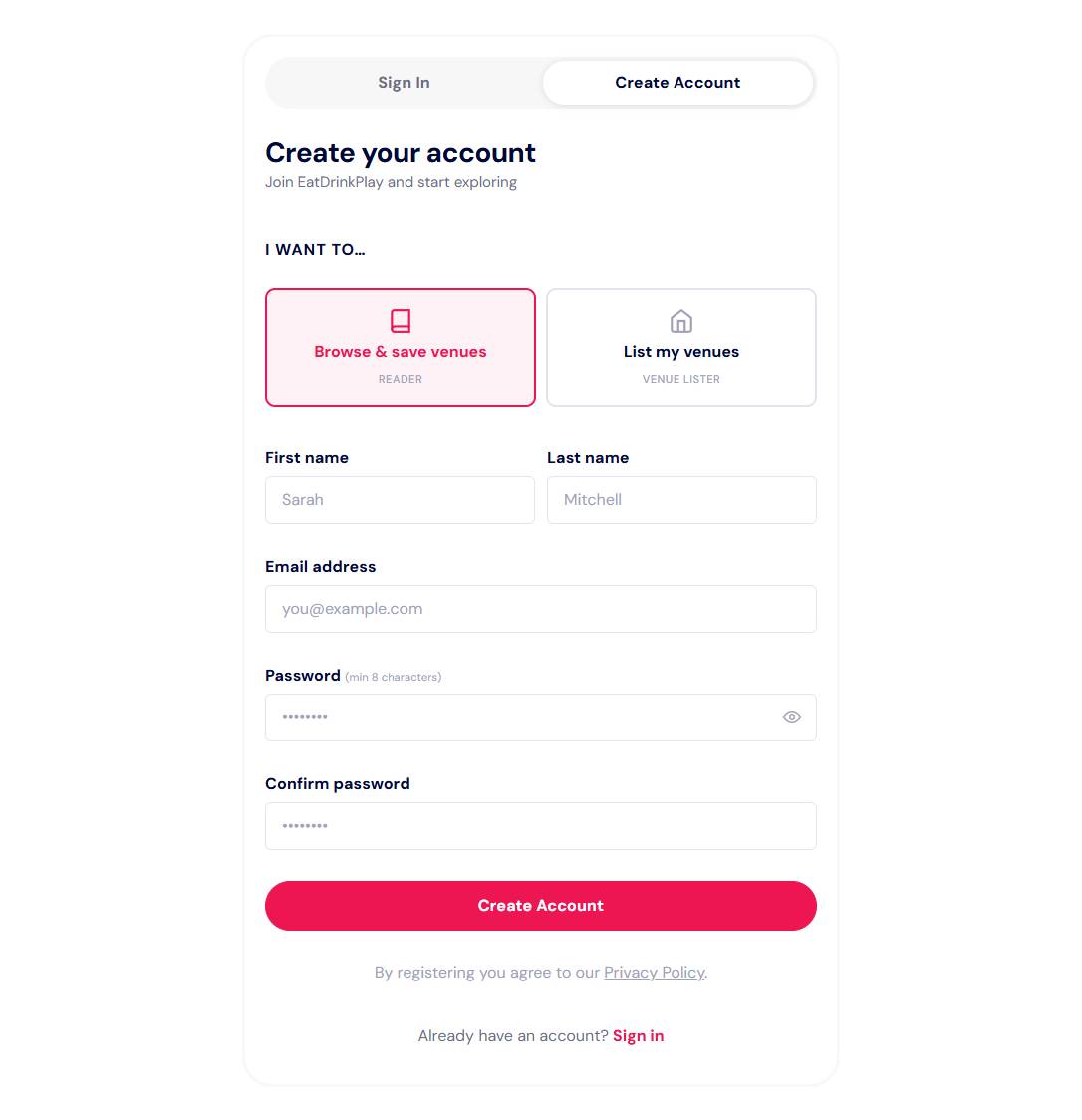
Select "EDP Reader"
On the registration form, choose EDP Reader as your account type. This gives you browsing and wishlist access.
-
Enter Your Details
Fill in your full name, email address, and a secure password. Passwords must be at least 8 characters.
-
Submit Registration
Click Create Account. Your account is created immediately - no email verification required for readers.
-
You're In!
You are automatically logged in and redirected to your member dashboard. You now have full reader access.
Logging In
-
Go to the Members Page
Click the account icon in the top right navigation.
-
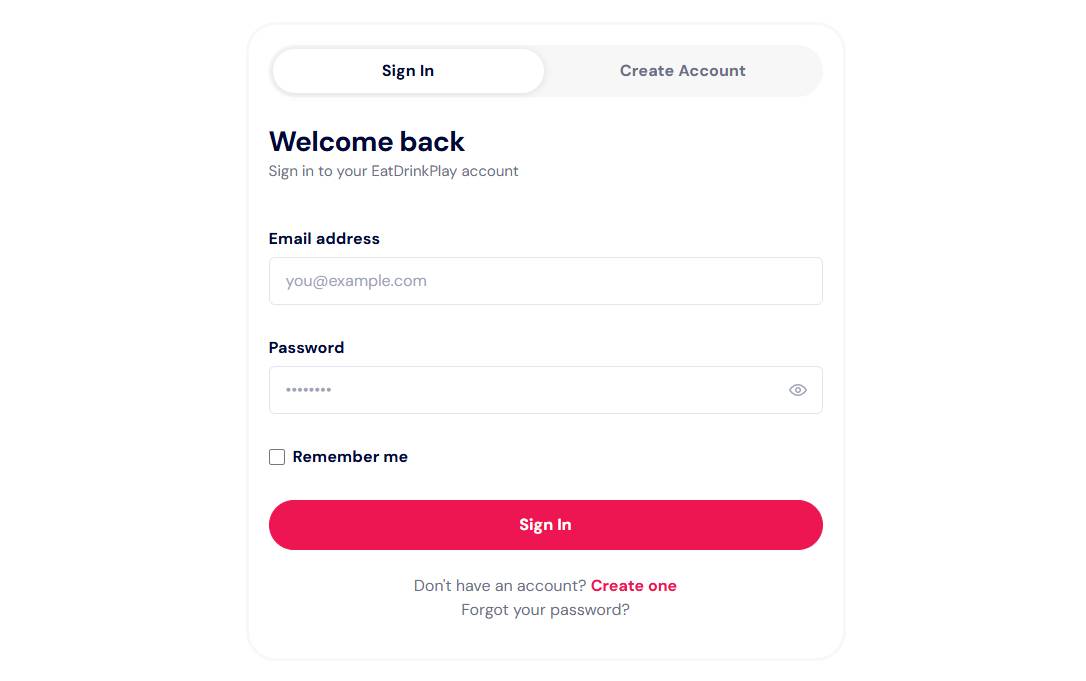
Enter Your Credentials
Type your email address and password. Tick Remember Me to stay logged in on this device.
-
Click Login
Click the Login button. You'll be redirected to your member dashboard.
Forgot Your Password? Click the Forgot password? link on the login form. Enter your email address and a reset link will be sent to you.
Logging Out
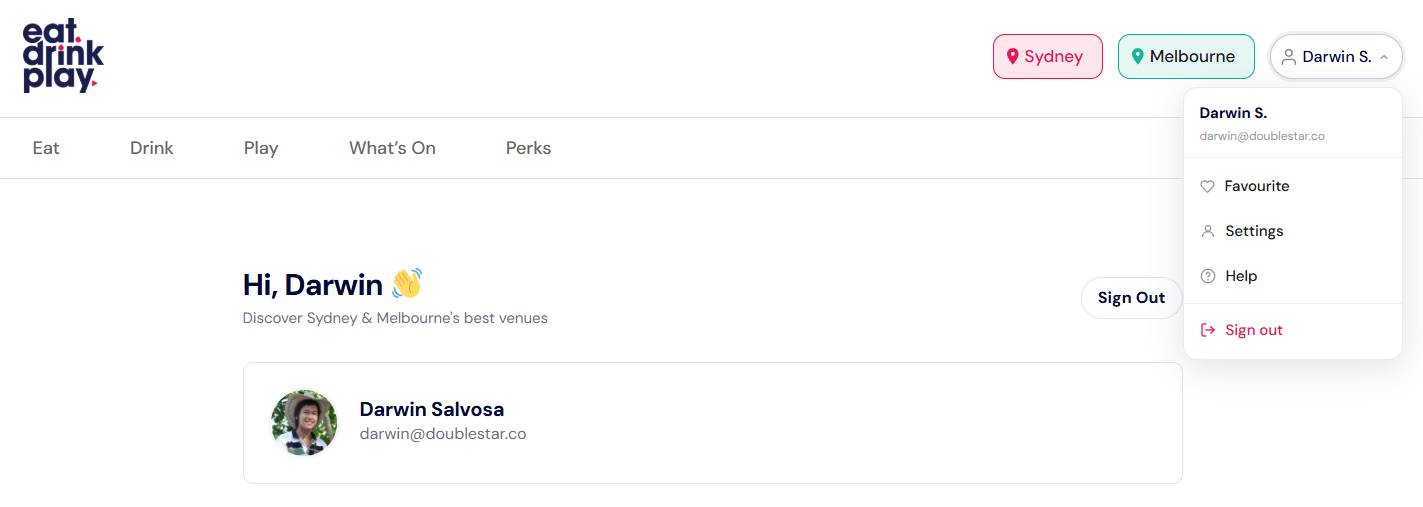
Click your name or avatar in the top navigation to open the account dropdown. Select Log Out. You will be redirected to the homepage.
Reader Dashboard
After logging in, you are taken to your personal member dashboard at /dashboard/.
Dashboard Tabs
| Tab | Contents |
|---|---|
| Saved | Your Wishlist - all venues and events you've saved with the heart icon |
| Profile | Update your name, email address, and password |
City Selection
EatDrinkPlay covers two cities: Sydney and Melbourne. The site shows content for your selected city by default.
How City Selection Works
-
First Visit
On your first visit, a city selection prompt may appear (or is accessible via the city selector in the navigation). Choose Sydney or Melbourne.
-
City is Remembered
Your city preference is saved as a cookie for 120 days. You won't be asked again on the same device.
-
Switch Cities
To browse a different city, click the city name in the navigation bar and select the other city from the dropdown.
Browsing Venues
Explore venues through the main navigation categories: Eat, Drink, and Play.

How to Browse Venues
-
Choose a Category
Click Eat, Drink, or Play in the main navigation.
-
Browse the Listing Page
Venue cards are displayed in a grid. Each card shows the venue name, suburb, a photo, and a heart icon for saving.
-
Use Filters
Use the filter bar to narrow results by Venue Type (e.g., Cocktail Bar), Occasion (e.g., Date Night), Vibe (e.g., Hidden Gem), or Suburb.
-
Click a Venue Card
Click on any venue card to open the full venue detail page with all information, gallery, hours, and booking links.
Venue Detail Page
Each venue has a dedicated detail page with comprehensive information.
What's on a Venue Page
| Section | Contents |
|---|---|
| Hero Banner | Image carousel (up to 10 photos) with venue name overlay |
| About | Editorial description, "Why We Love It" quote |
| Our Picks | Editorial recommendations for Eat / Drink / Play at the venue |
| Hours | Opening hours with live open/closed status indicator |
| Location | Address, suburb, Google Maps link |
| Contact | Phone number, website link |
| Social Links | Instagram, Facebook links |
| Book / Reserve | Reservation booking button (if available) |
| Offers | Any active promotional offers from the venue |
| Promo Code | Exclusive discount code (if available for members) |
| Share | Share the venue via social media or copy link |
| Save | Heart button to save to your Wishlist |
Open / Closed Status
The venue hours section shows a real-time Open Now or Closed indicator based on your current time and the venue's opening hours. If closed, the next opening time is displayed.
Search & Filters
Using the Search
-
Click the Search Icon
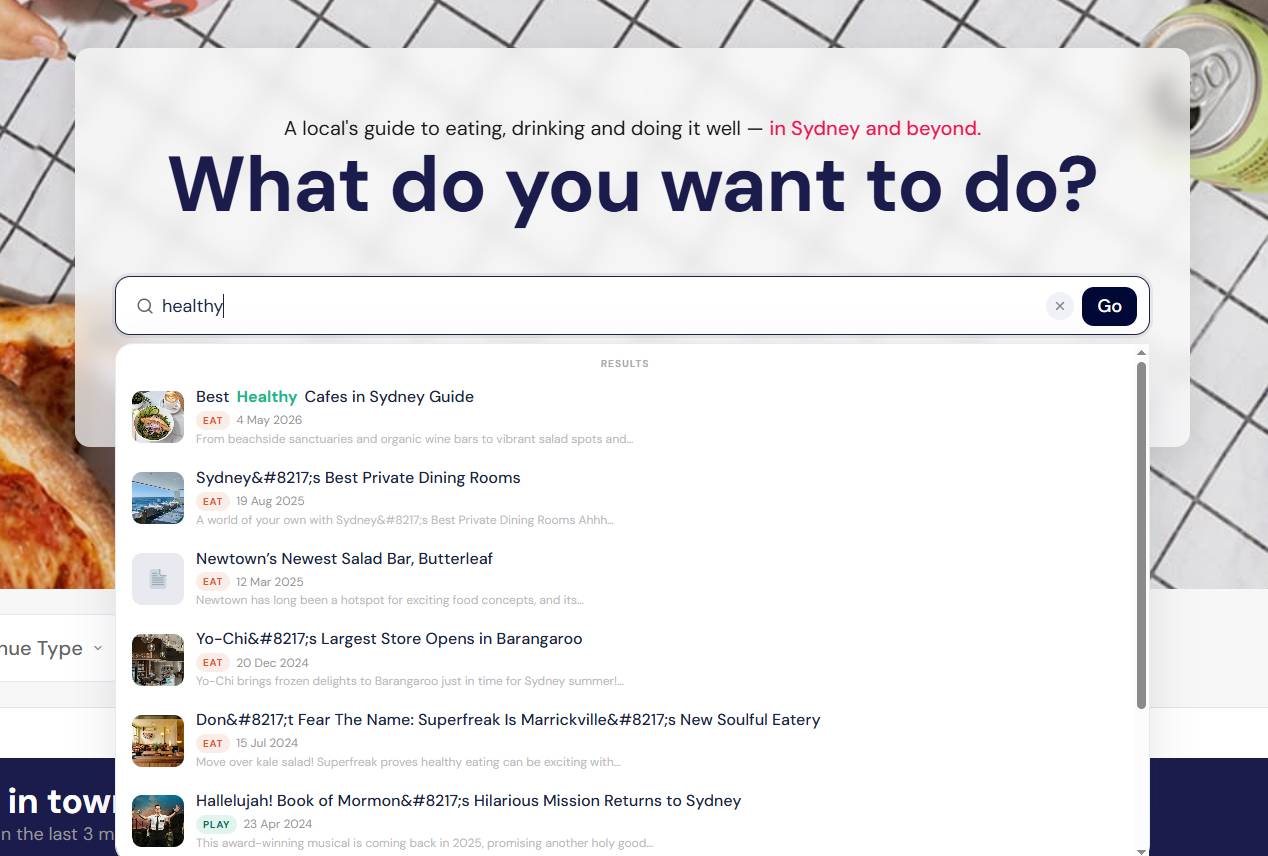
Click the search icon (🔍) in the main navigation or use the hero search bar on the homepage.
-
Type Your Query
Start typing a venue name, suburb, cuisine type, or keyword. Results appear as you type.
-
Filter by Category
Use the All / Eat / Drink / Play toggle to narrow results to a specific category.
-
Select a Result
Click on a result to go directly to that venue or article page. If no exact match is found, the system shows trending results.
Surprise Me
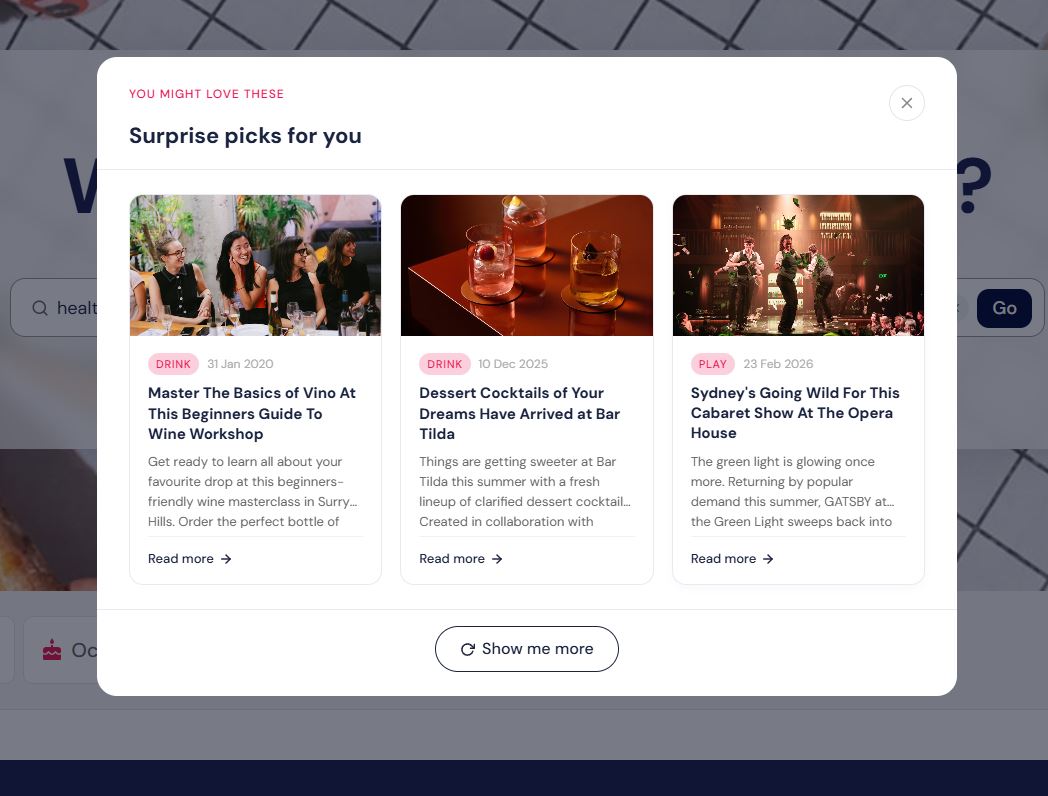
You might love these
Surprise picks chosen just for you. We'll randomly select from our collection of guides, articles, and recommendations so you can discover something new. Each suggestion is carefully curated by our team to help you find hidden gems you might otherwise miss.
To try it, simply open our site and look for the Surprise Me button in the search filters. Click it anytime to instantly receive a random guide recommendation and uncover something new to explore.
What's On
The What's On section showcases curated events, experiences, and venues happening this week in your city.
Location: Main navigation → What's On
What You'll Find
- Featured Events - Ticketed experiences (dinners, tastings, shows)
- Highlighted Venues - Venues with special weekly features
Booking an Event
-
Find the Event
Browse What's On or search for a specific event by name or date.
-
View Event Details
Click the event card to see full details - description, date, time, price, location, and tickets remaining.
-
Book Now
Click the Book button (or custom button text). You'll be redirected to the external booking or ticketing platform.
Wishlist
Save your favourite venues and events to your personal Wishlist using the ❤️ heart icon. Your Wishlist is accessible from your dashboard and the dedicated Wishlist page.
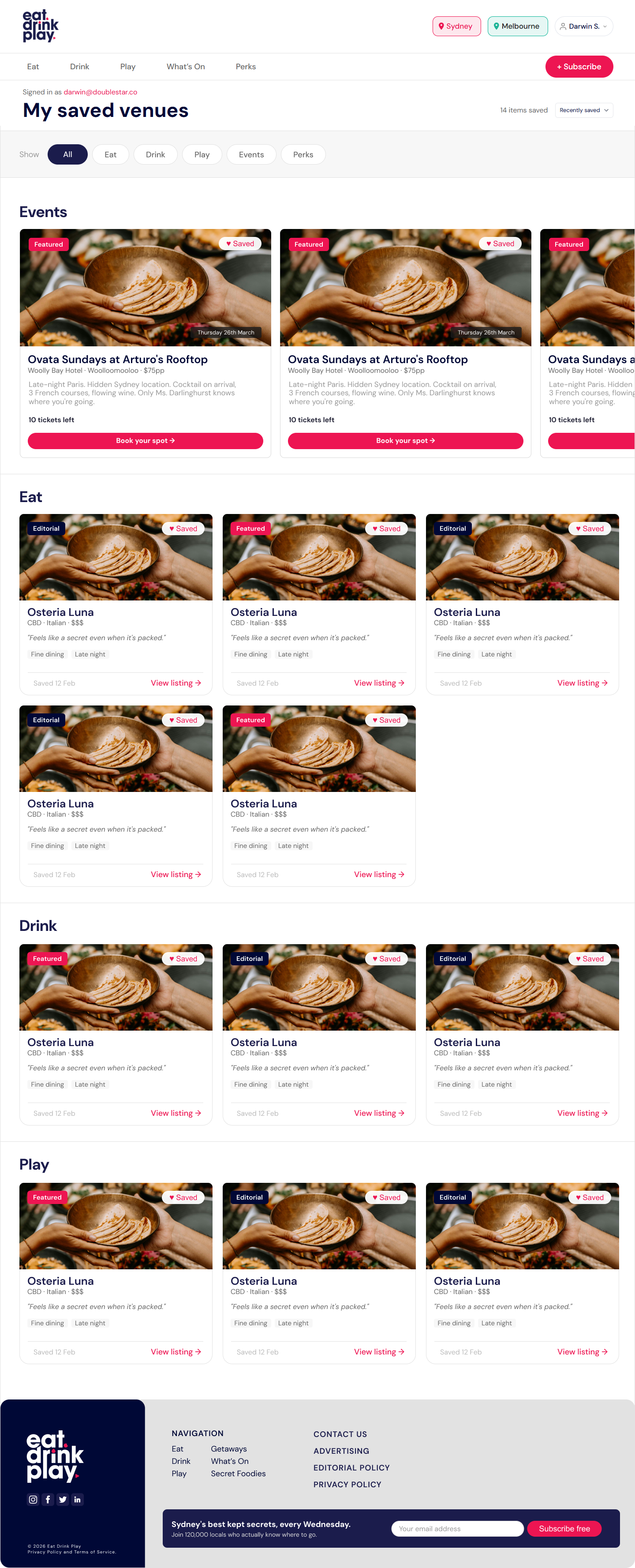
Saving a Venue or Event
-
Find the Heart Icon
On any venue card or venue detail page, locate the ❤️ heart icon (usually in the top-right corner of the card, or in the venue hero area).
-
Click the Heart
Click the heart icon. It will fill in (❤️ solid) to confirm the venue is saved. Click again to unsave.
-
View in Wishlist
Go to your Dashboard → Saved tab or the dedicated Wishlist page to see all saved items.
Wishlist Tabs
On the Wishlist page, your saved items are organised into tabs:
| Tab | Contents |
|---|---|
| All | All saved venues and events |
| Eat | Saved dining venues |
| Drink | Saved bar/drinks venues |
| Play | Saved entertainment venues |
| Events | Saved What's On events |
Guides & Articles
EatDrinkPlay publishes curated editorial guides and articles to help you discover the best experiences in your city.
Location: Main navigation → Guides (or via the Secret Foodies, Essential Guides, Trending sections)
Guide Sections
| Section | Contents |
|---|---|
| Essential Guides | In-depth curated lists - "Best Rooftop Bars", "Top 10 Brunches", etc. |
Offers & Perks
As an EDP Reader member, you gain access to exclusive deals and member benefits.
Location: Main navigation → Offers / Perks
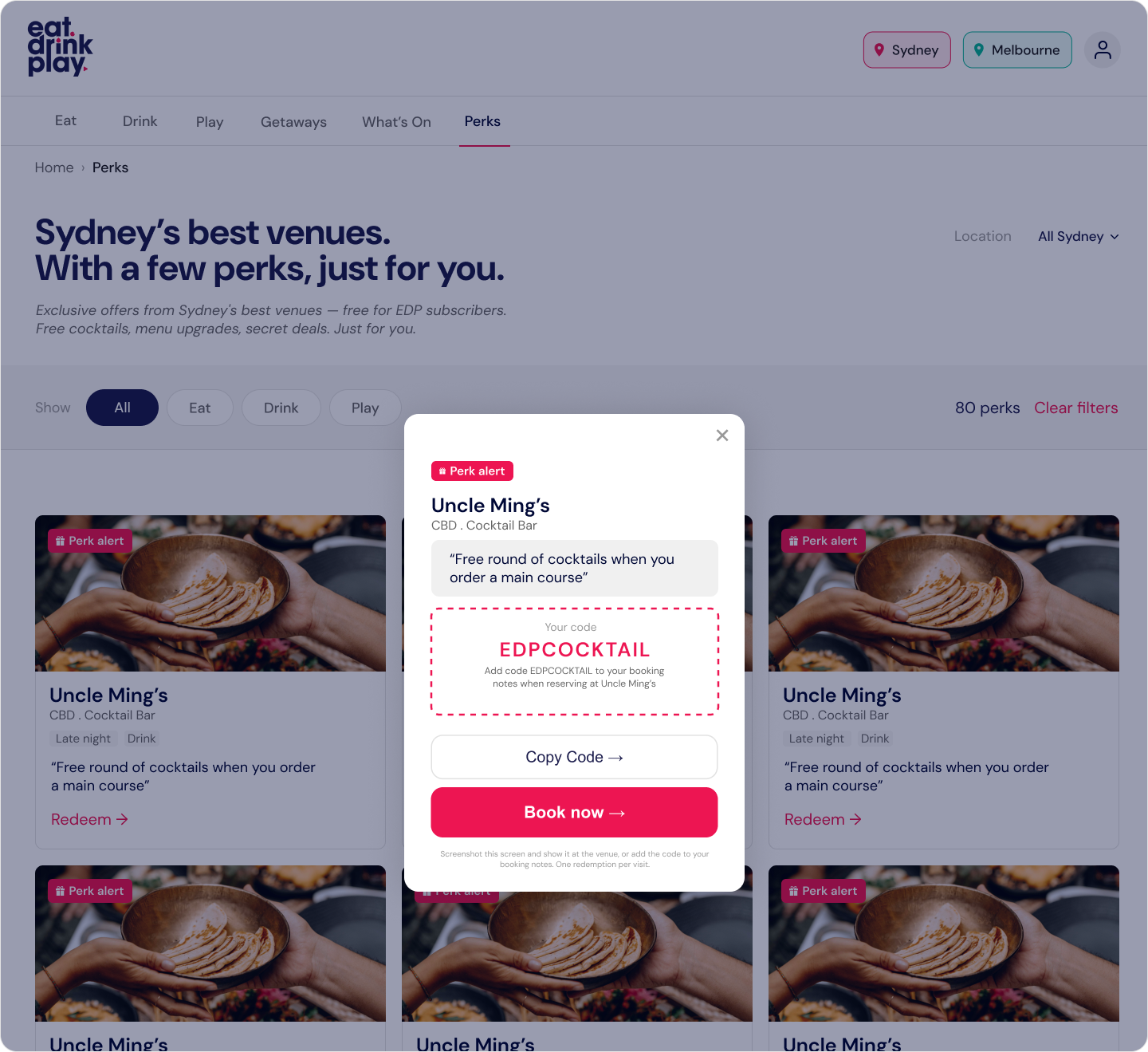
Types of Offers
- Promo Codes - Exclusive discount codes for member use at partner venues
Using an Offer
-
Find an Offer
Browse the Offers page or check the Perks section. You can also find offers directly on venue detail pages.
-
Note the Promo Code
If the offer has a promo code, copy or note it.
-
Redeem at the Venue
Present your membership (show the page on your phone) or use the promo code at checkout at the venue's website. Terms and conditions apply.
Profile Settings
Manage your account details from your dashboard.
Location: Dashboard → Profile tab
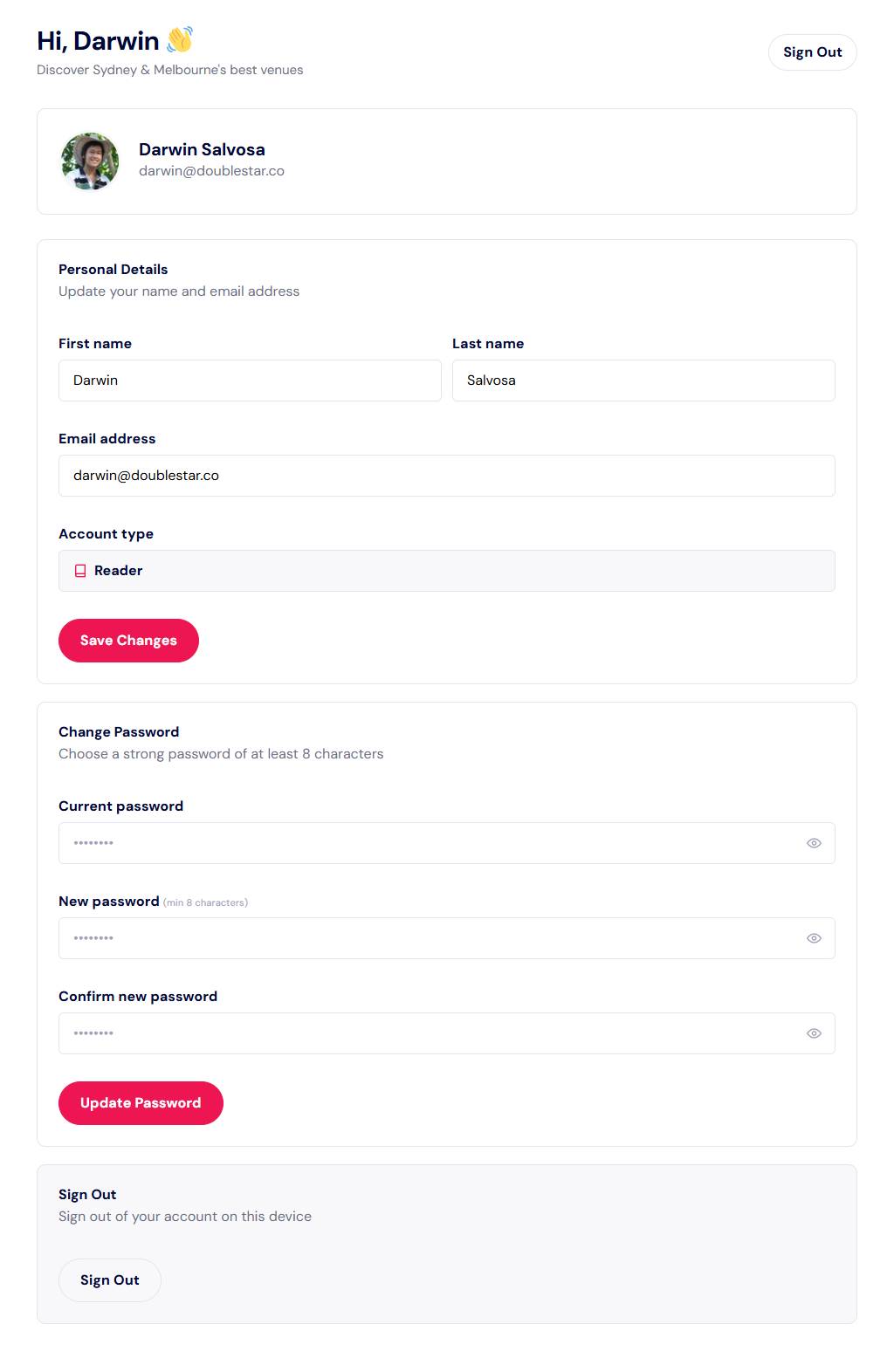
Updating Your Name or Email
-
Go to Profile Tab
Log in and navigate to your Dashboard. Click the Profile tab.
-
Edit Your Details
Update your First Name, Last Name, or Email Address in the form fields.
-
Save Changes
Click Save Changes. A confirmation message will appear.
Changing Your Password
-
Go to Profile Tab
Log in and go to your Dashboard → Profile tab.
-
Enter New Password
Find the password change section. Enter your current password, then your new password twice to confirm.
-
Save
Click Update Password. You will remain logged in.
Access & Restrictions
As an EDP Reader, there are certain areas of the platform that are not accessible:
| Area | Access | Alternative |
|---|---|---|
| WordPress Admin Panel | ❌ No access | Use the front-end dashboard at /dashboard/ |
| Create Venue Listings | ❌ Requires Venue Lister account | Register as a Venue Lister |
| Edit Published Content | ❌ Read-only | Contact support to report incorrect information |
| Other Users' Wishlists | ❌ Private to each user | Share links to venues directly |
| Venue Lister Dashboard | ❌ Separate account type | Register a separate Venue Lister account |